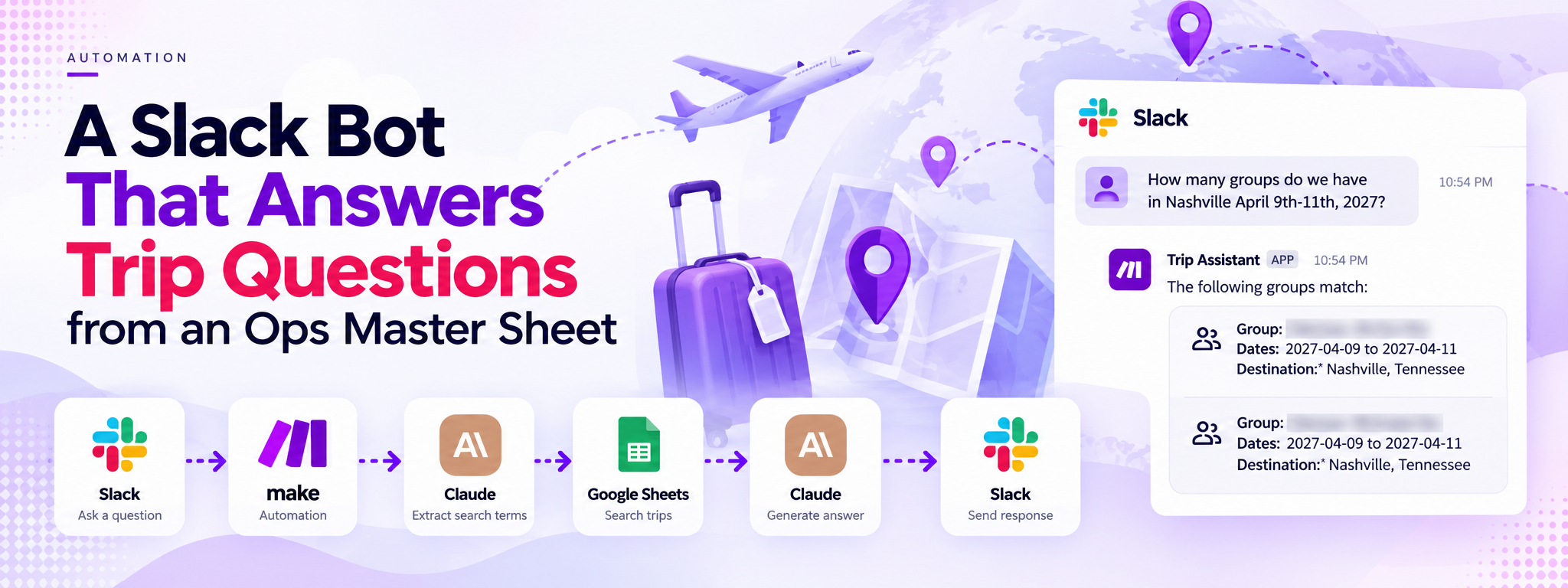
A Slack Bot That Answers Trip Questions from an Ops Master Sheet
A Make scenario that lets a team member ask a plain-English trip question in Slack and get an answer drawn only from the ops master sheet.
 Make Automations
- Make
- Slack
- Google Sheets
- Claude
Project Overview
This internal operations tool helps a group travel team find trip information using plain-English questions in Slack, without manually searching through a large Google Sheets workbook.
The team stores trip information in the MASTER tab of the Master Ops Fall 26/Spring27 workbook. Each row represents a group trip and contains information about dates, destinations, operations coordinators, sales representatives, contracts, hotels and rooming, transport, events, task due dates, and payment status.
Tools: Make, Slack, Google Sheets, and Anthropic Claude (claude-sonnet-4-6).
01. The Problem
The operations master sheet contains more than 55 labelled fields per trip, spanning columns A to BH.
Finding a specific detail—such as a group's hotel information or room counts—requires locating the correct trip row and navigating to the relevant column. This makes answering everyday operational questions more time-consuming.
02. The Solution
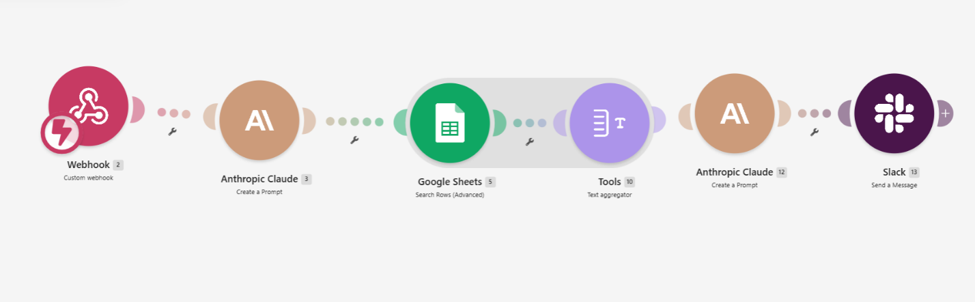
A six-module Make scenario connects Slack with Google Sheets and Claude to process questions and return relevant trip information.
The workflow:
- Receives the question and Slack channel through a webhook.
- Uses Claude to convert the question into structured search terms.
- Searches the master sheet for matching trips.
- Combines the matching rows into readable text.
- Uses Claude again to generate an answer based only on the retrieved information.
- Posts the answer back to the same Slack channel.
03. How It Works
Step 1: Receive the Question
A custom webhook receives the incoming question and the Slack channel information.
Step 2: Identify the Search Terms
Claude interprets the plain-English question and converts it into structured search terms that can be used to find relevant trips.
Step 3: Search Google Sheets
The scenario searches the operations master sheet for trips matching the extracted criteria.
Step 4: Format the Matching Results
The matching spreadsheet rows are combined into readable text using a text aggregator.
Step 5: Generate the Answer
Claude uses the retrieved text to answer the original question. The answer is restricted to the information provided by the matching spreadsheet results.
Step 6: Reply in Slack
The final answer is posted back to the same Slack channel where the question originated.
04. Workflow Architecture
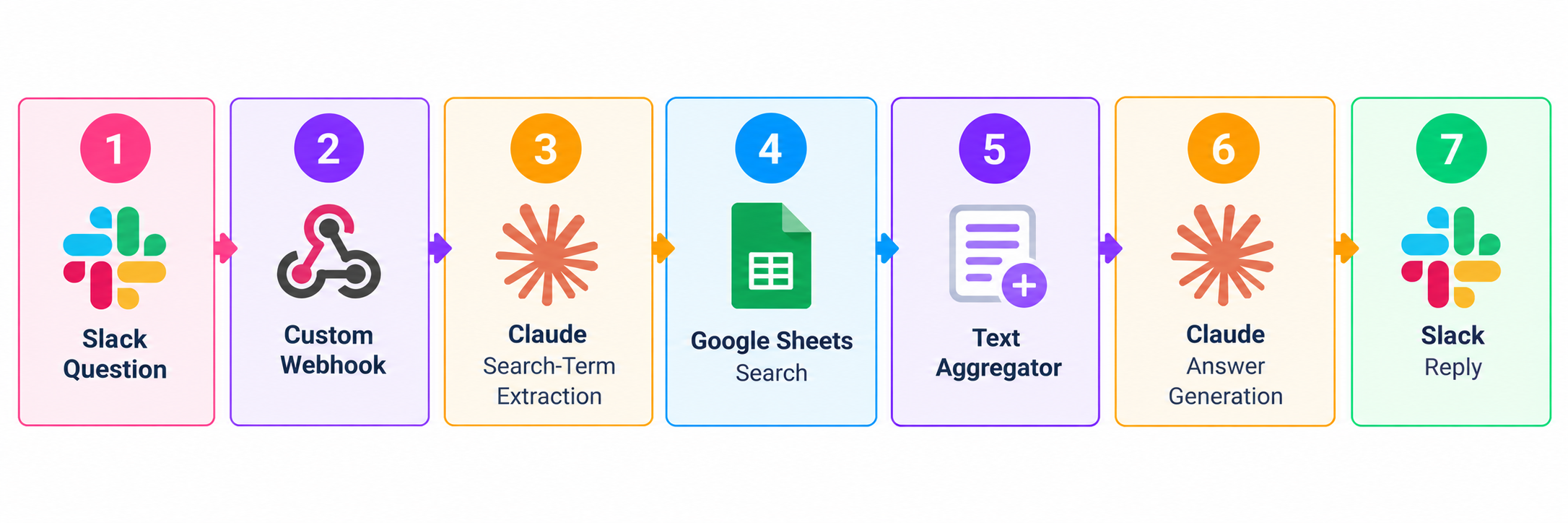
The scenario separates question interpretation, data retrieval, result formatting, and answer generation into distinct steps.
05. Example Use Case
A team member asks:
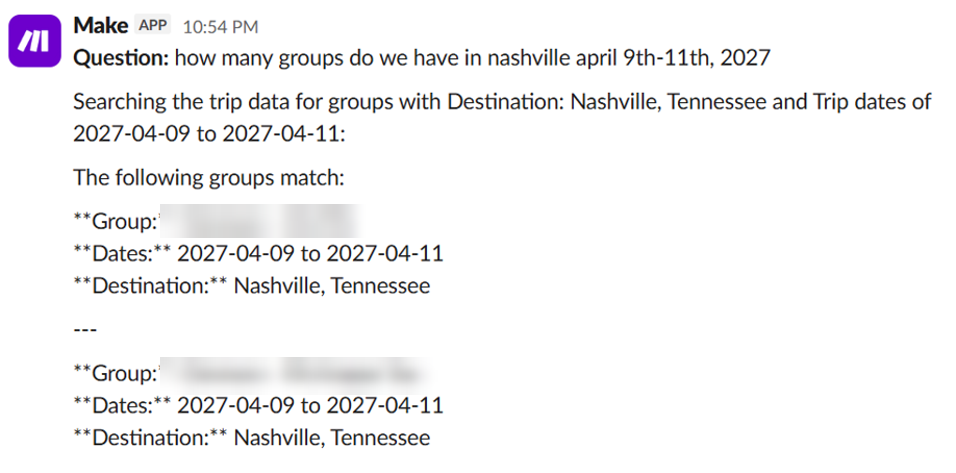
“How many groups do we have in Nashville from April 9–11, 2027?”
The bot searches for trips matching the destination and dates, then returns the matching groups with their trip dates and destinations in Slack. The example screenshot shows group names blurred for privacy.
06. Tools and Integrations
- Make: Connects the workflow modules and coordinates processing.
- Slack: Provides the interface for asking questions and receiving answers.
- Google Sheets: Stores the operations master data used to answer questions.
- Anthropic Claude: Converts questions into search terms and generates answers from the retrieved results.
07. Outcome
The scenario gives the operations team a conversational way to retrieve trip information from a large master sheet. Team members can ask questions in Slack and receive structured answers based on matching spreadsheet records, without manually searching across the workbook.