
Newsletter Generator: From a Google Sheets Row to a Draft Campaign
A Make scenario that turns one row of a Google Sheets newsletter planner into a finished draft campaign in Campaign Monitor, in one of three layouts chosen by the editor.
 Make Automations
- Make
- Google Sheets
- Campaign Monitor
Project Overview
This Make scenario automates the creation of newsletter draft campaigns using content stored in Google Sheets. Editors prepare the newsletter information in a spreadsheet, select one of three templates, and mark the row for creation. Make then builds the newsletter and creates a draft campaign in Campaign Monitor.
01. The Challenge
Creating a newsletter manually requires editors to copy titles, images, excerpts, links, and category labels into an email template. This process must be repeated for news articles, sponsored posts, a destination report, and a podcast episode.
02. The Solution
The Make scenario connects Google Sheets with Campaign Monitor to generate a newsletter draft from a single spreadsheet row. It uses the selected template to build the campaign content and updates the row when the process is complete.
03. How It Works
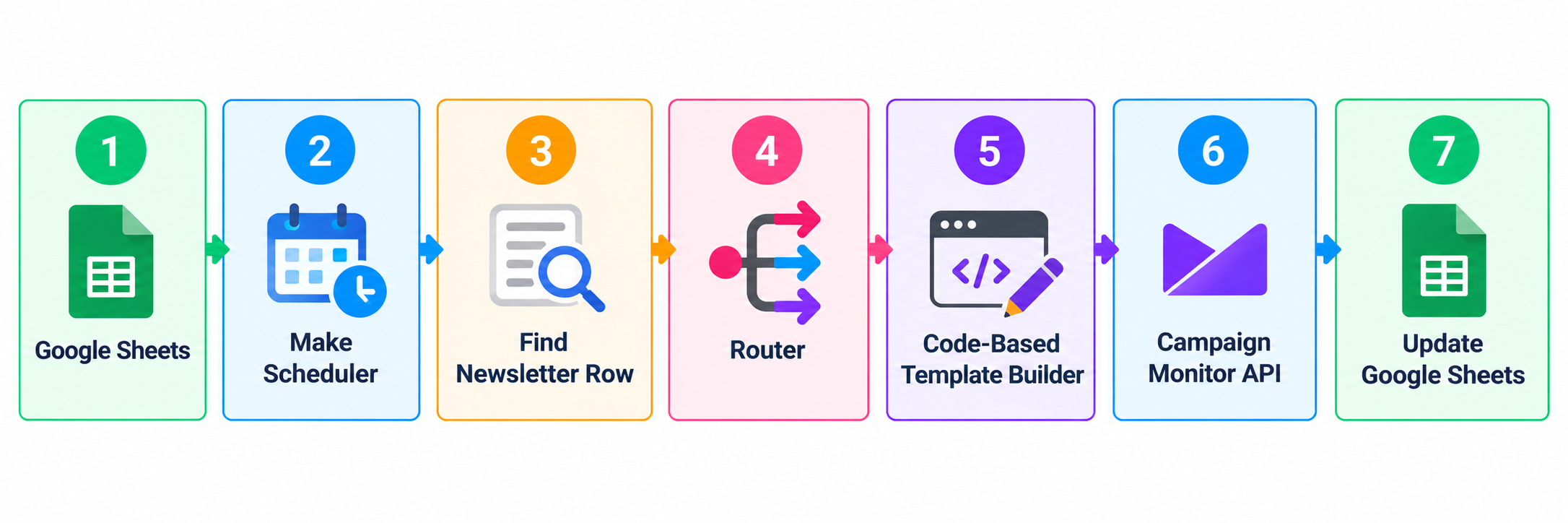
Step 1: Prepare the Newsletter
The editor fills in a Google Sheets row with the content for three news posts, three sponsored posts, a destination report, and a podcast episode.
Step 2: Select a Template
The editor chooses template 1, 2, or 3 and sets the Create Newsletter cell to Create.
Step 3: Find the Requested Row
Make searches the sheet on its schedule for a row marked Create and processes one row at a time.
Step 4: Route to the Selected Layout
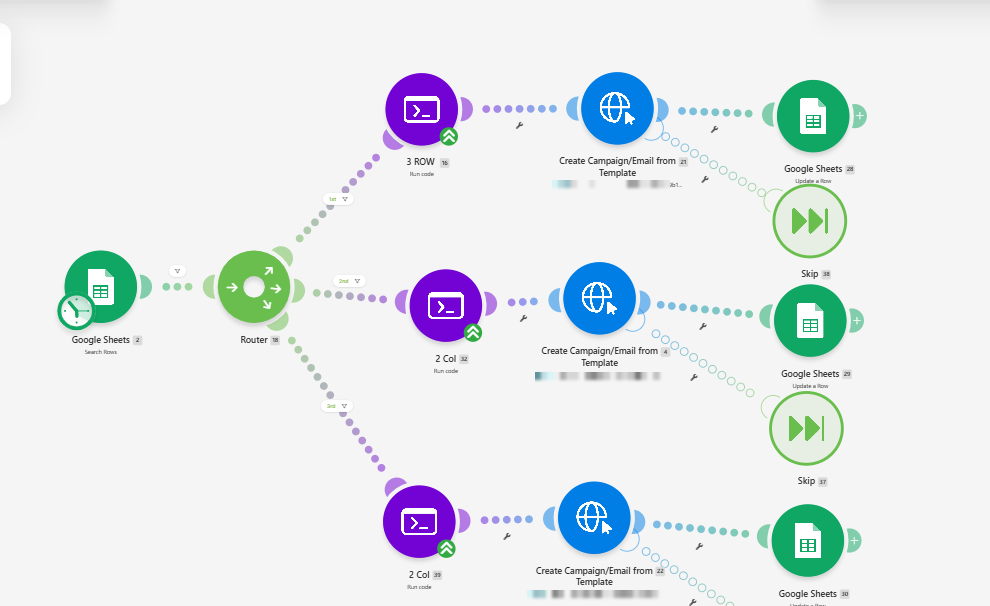
A router directs the row to one of three routes based on the selected template number.
Step 5: Build the Newsletter
A code step assembles the newsletter content, including banners, images, category labels, titles, excerpts, links, and buttons. The layout varies according to the selected template.
Step 6: Create the Draft Campaign
An HTTP request sends the generated content to the Campaign Monitor API, which creates a draft campaign using the selected template.
Step 7: Update the Spreadsheet
After the campaign is created, Google Sheets is updated with the status Done.
04. Newsletter Content Structure
The generated newsletter includes:
- A top banner
- Three news posts
- A banner separating content sections
- Three sponsored posts
- A destination report
- A podcast episode
- An additional banner
News and sponsored posts include images, category labels, titles, excerpts, and links. The destination report includes a destination name and description, while the podcast section includes its date, title, description, and listening link.
05. Template Options
The scenario supports three newsletter layouts:
- Template 1: A three-row layout.
- Templates 2 and 3: Mixed layouts with two posts side by side and one centred below, using their respective templates.
06. Content Handling
The code includes defaults for missing content. Missing news or sponsored-post images use a default image, missing links point to the main website, and each campaign receives a unique name with a timestamp. The subject line and header date default to the current month and year. Sender details and the subscriber list are also set in the code step.
07. Workflow Architecture
Each template route builds the campaign content and sends it to Campaign Monitor. A Skip step on each route handles errors.
08. Tools and Integrations
- Make: Coordinates the workflow, routing, and newsletter generation.
- Google Sheets: Stores newsletter content, template selection, and processing status.
- Campaign Monitor: Creates the newsletter as a draft campaign.
09. Review and Error Handling
The campaign is created as a draft in Campaign Monitor so the team can review it before sending. If Campaign Monitor returns an error, the scenario skips that run instead of stopping with an error.
10. Outcome
The scenario allows editors to prepare newsletter content in Google Sheets and generate a corresponding Campaign Monitor draft without manually copying each content block into the email editor. The team can review the generated draft in Campaign Monitor before sending it.