From a Signed DocuSign Contract to a Master Sheet Row and an Itinerary Slide
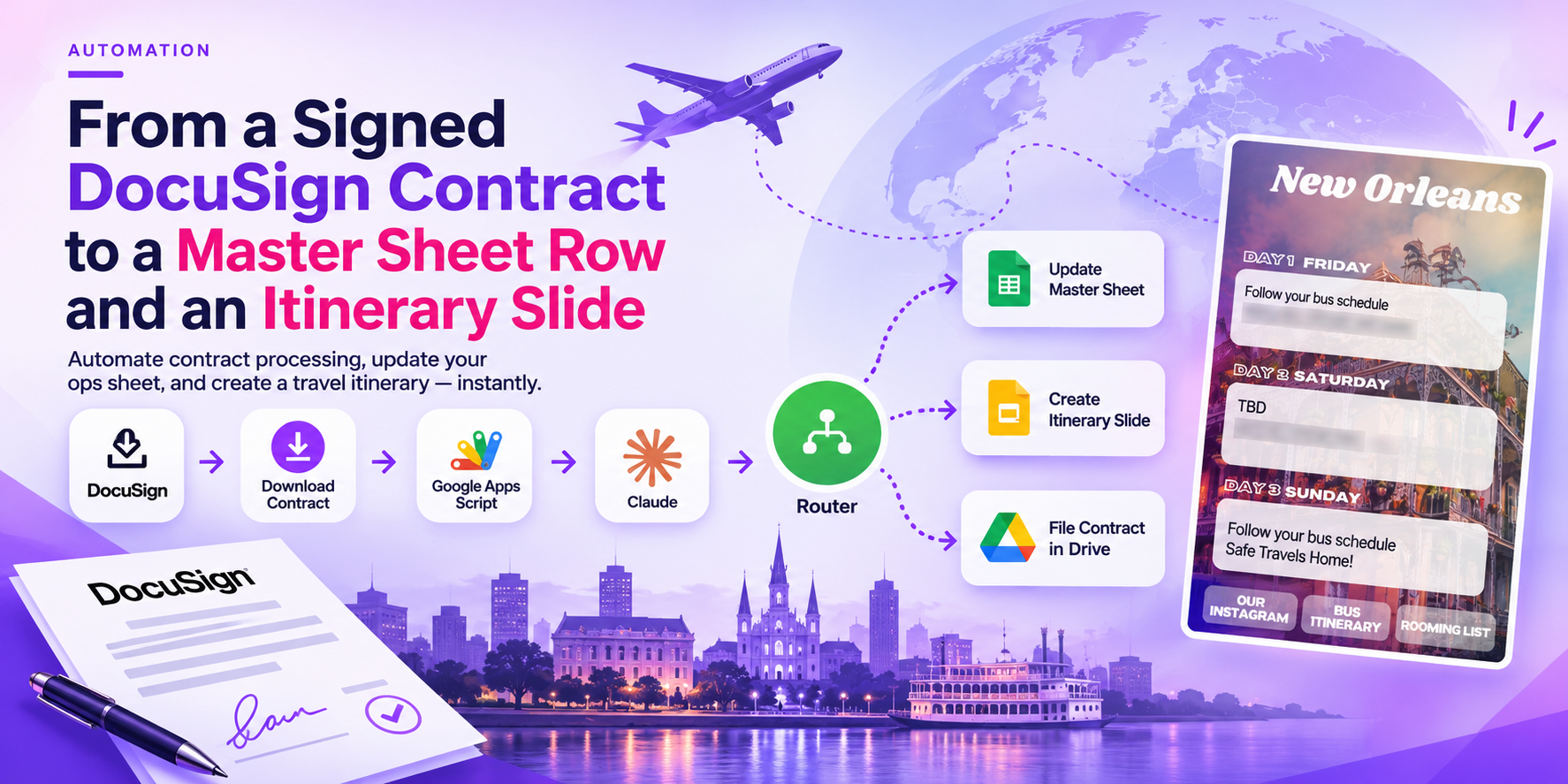
Turning a signed DocuSign travel contract into a master sheet row, a filed contract and an itinerary slide, automatically.
 Make Automations
- Make
- DocuSign
- Google Drive
- Google Apps Script
- Claude
- Google Sheets
- Google Slides
Project Overview
This Make automation supports operations for a group travel company that manages college formal events.
When a group signs a travel contract in DocuSign, the workflow processes the completed contract and supports three follow-up tasks: recording trip details in the master operations spreadsheet, filing the signed contract in the group's Google Drive folder, and producing a Friday, Saturday, and Sunday itinerary slide.
Tools: Make, DocuSign, Google Apps Script, Anthropic Claude (claude-sonnet-4-6), Google Sheets, Google Slides, and Google Drive.
01. The Challenge
Signed travel contracts contain information that must be transferred into several operational resources, including:
- Hotel names and room counts
- Check-in ages
- Buses and venues
- Event times
- Food and bar packages
- Payment and task due dates
Manually transferring these details into the master sheet, filing the contract, and building a customer-facing itinerary is repetitive and can lead to errors.
02. The Solution
A Make scenario automates the process after a DocuSign envelope is completed. It downloads the signed document, obtains structured contract data through a Google Apps Script web app, and uses Claude to generate the three-day itinerary text.
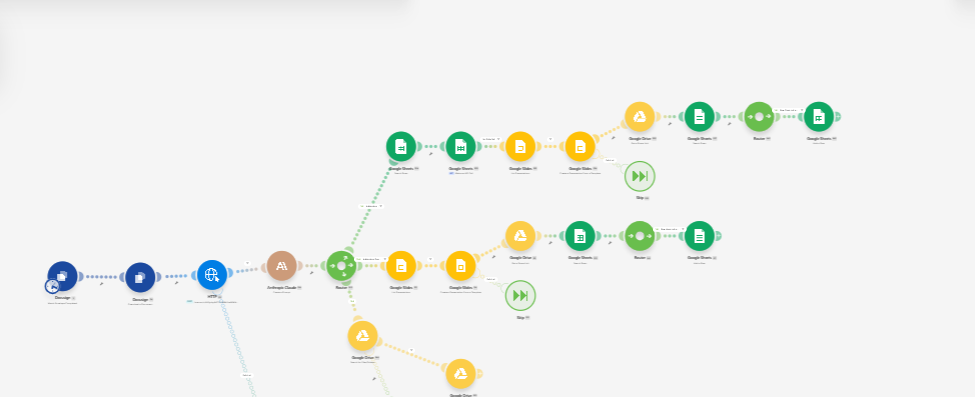
The workflow then routes the results into three paths: a new-contract path, an addendum path, and an archive path.
03. How It Works
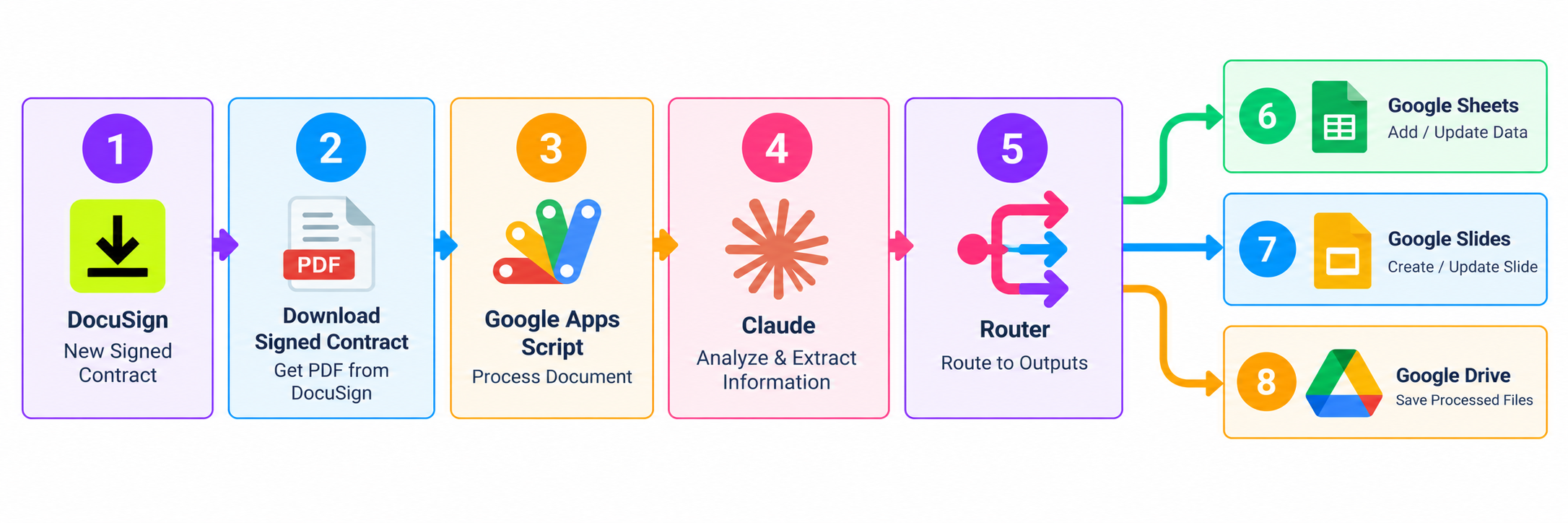
Step 1: Detect the Signed Contract
The workflow starts when a DocuSign envelope is completed.
Step 2: Download the Document
Make downloads the signed contract for further processing.
Step 3: Extract Contract Information
An HTTP request sends the document to a Google Apps Script web app, which returns the contract fields as structured data.
Step 4: Generate Itinerary Text
Claude uses the structured fields to write the itinerary content for Friday, Saturday, and Sunday.
Step 5: Route the Results
A router directs the workflow into three paths:
- New Contract: Handles the new-contract path.
- Addendum: Handles the addendum path.
- Archive: Handles the archive path.
The scenario connects with Google Sheets, Google Slides, and Google Drive as part of the downstream processing.
04. Workflow Architecture
The workflow uses a router to separate the processing paths after the contract information and itinerary text have been prepared.
05. Example Output: Three-Day Itinerary
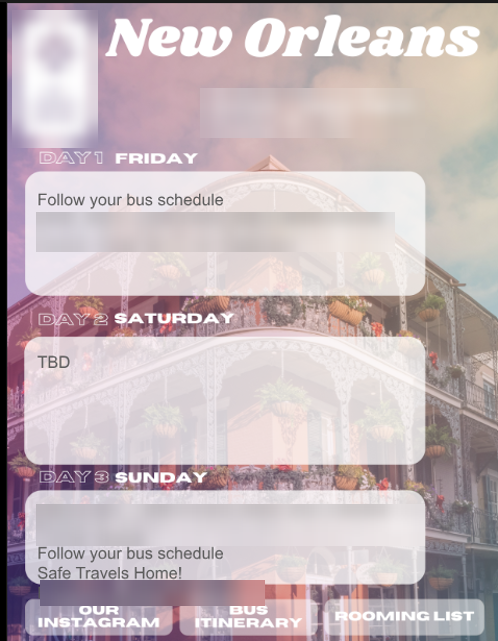
The example itinerary slide presents a group's Friday, Saturday, and Sunday schedule. The supplied screenshot has group, date, hotel, and company details blurred for privacy.
Suggested placement: Include the itinerary screenshot here, after the workflow architecture section, to show an example of the generated output.
06. Tools and Integrations
- Make: Coordinates the automation and routes the workflow.
- DocuSign: Triggers the process when a contract envelope is completed and provides the signed document.
- Google Apps Script: Returns contract fields as structured data.
- Anthropic Claude: Generates the three-day itinerary text.
- Google Sheets: Supports master operations data.
- Google Slides: Supports the itinerary slide.
- Google Drive: Supports contract filing.
07. Outcome
The workflow automates key steps following contract completion, connecting signed-document processing with structured trip data, itinerary text generation, and downstream document handling.